To get your Gmail as one file, use Google Takeout. Select only Mail, choose which labels to include, create the export, wait for Google’s email, and download the ZIP within about 7 days. Inside it you will find your mail as one or more .mbox files.
The steps follow Google’s help pages and the University of Michigan’s guide to the same screens, which we read on November 29, 2026. We could not open the live Takeout screen, because it needs a sign-in. Google changes it from time to time, so a button may carry a different name.
What you get
According to Google’s page on exporting your data from Gmail, the download includes the message content, the message headers and the attachments. It also includes the labels of your messages: Inbox, Sent, Drafts, Starred, Trash, Spam, archived mail, and your own labels. Encrypted messages stay encrypted in the download.
Four things to know before you start:
- Downloading does not delete anything. The Takeout help page says your data stays on Google’s servers.
- On a work or school account, some data might not be available for download.
- Takeout cannot export by date. Google says it does not support timeframe exports, so you choose labels, not a date range.
- Google recommends downloading and viewing Takeout exports on a desktop computer, not a phone.
The Google pages we read for Takeout and Gmail do not name the file format. The University of Michigan’s IT documentation, which walks through the same steps, states that Takeout provides mail in the MBOX format. Each archive also holds a file called archive_browser.html, which explains the formats it contains.
The steps
- Sign in to your Google Account and open Google Takeout (takeout.google.com).
- Takeout selects every Google product you use. The University of Michigan guide says to choose “Deselect all” and then select Mail only. Otherwise the archive also holds photos, Drive files and more, and can become huge.
- Next to Mail, choose the button that the Michigan guide calls “All Mail data included”. It opens the list of your labels. Keep every message, or clear “Include all messages in Mail” and select only the labels you want. Google’s own page calls this “a button like All data included”.
- Choose “Next step”.
- For the delivery method, keep “Send download link via email”. Google also offers Drive, Dropbox, OneDrive and Box. The Michigan guide calls this screen “Destination”.
- For the export type, choose a one-time archive. The other choice repeats the export every 2 months for a year. The Michigan guide calls it “Frequency”.
- For the file type, Google offers ZIP and TGZ. Choose ZIP, because TGZ may need extra software on Windows.
- For the archive size, Google says archives bigger than the size you pick are split into several files, and that picking 50 GB lowers the chance of that. The Michigan guide, last updated in February 2026, says the defaults are ZIP and 2 GB. We could not check the default for a personal account. Choose 50 GB if your connection is fast and steady. Each archive can be downloaded only 5 times, and Google says that if a download fails, you should ask for a smaller archive size.
- Choose “Create export”. Google may ask for your password again, and for a second sign-in step if you use one. Google ties that check to downloading the archive, so it may come at the end.
While you wait, do not send the same request again. The Michigan guide says that duplicates the work.
How long it takes
Google says the export can take from a few minutes to a few days, depending on how much is in the account, and that most people get the link on the same day. If you are in Google’s Advanced Protection Program, the archive is scheduled two days later.
When the email arrives, follow its link and download the ZIP. The archive expires in about 7 days. After that you have to ask for a new one. Save the ZIP to a second place, such as an external drive, as soon as it has downloaded.
A sum for the size. Say your mail adds up to 62 GB. This is an example, not a number from Google. With the 50 GB size, you get two archives, for example one of about 50 GB and one of about 12 GB, though Google decides how it splits them. You then have two ZIP files to download and unzip, and your mail is spread over them. Unzipping puts the unzipped copy next to the ZIP, so keep room on the disk for both.
What is in the file
An MBOX file is plain text. The Library of Congress describes the format as a single file that holds all the messages of a folder, each one starting with a separator line. Attachments are kept inside the messages in their original encoded form, so the file grows large.
Because it is plain text, the file holds your whole mailbox in a form that anyone can read. Google tells people on a public computer to store the archive where they are the only user. Keep the file off shared computers, and delete working copies when you are done.
Your Gmail labels are kept in a header on each message called X-Gmail-Labels. Google’s page says no mail program recognizes this header, so expect your messages to arrive without the labels when you import the file into another mail program. The viewer on this site does read it.
Reading the file
You have three ways.
In your browser. The MBOX viewer on this site reads the file on your device and uploads nothing. It reads the X-Gmail-Labels header and shows each label as a folder. A message that has two labels appears in both. Search by sender, recipients, subject and date, save attachments, save a message as an EML file, or print one, or save it as PDF from your browser’s print window.
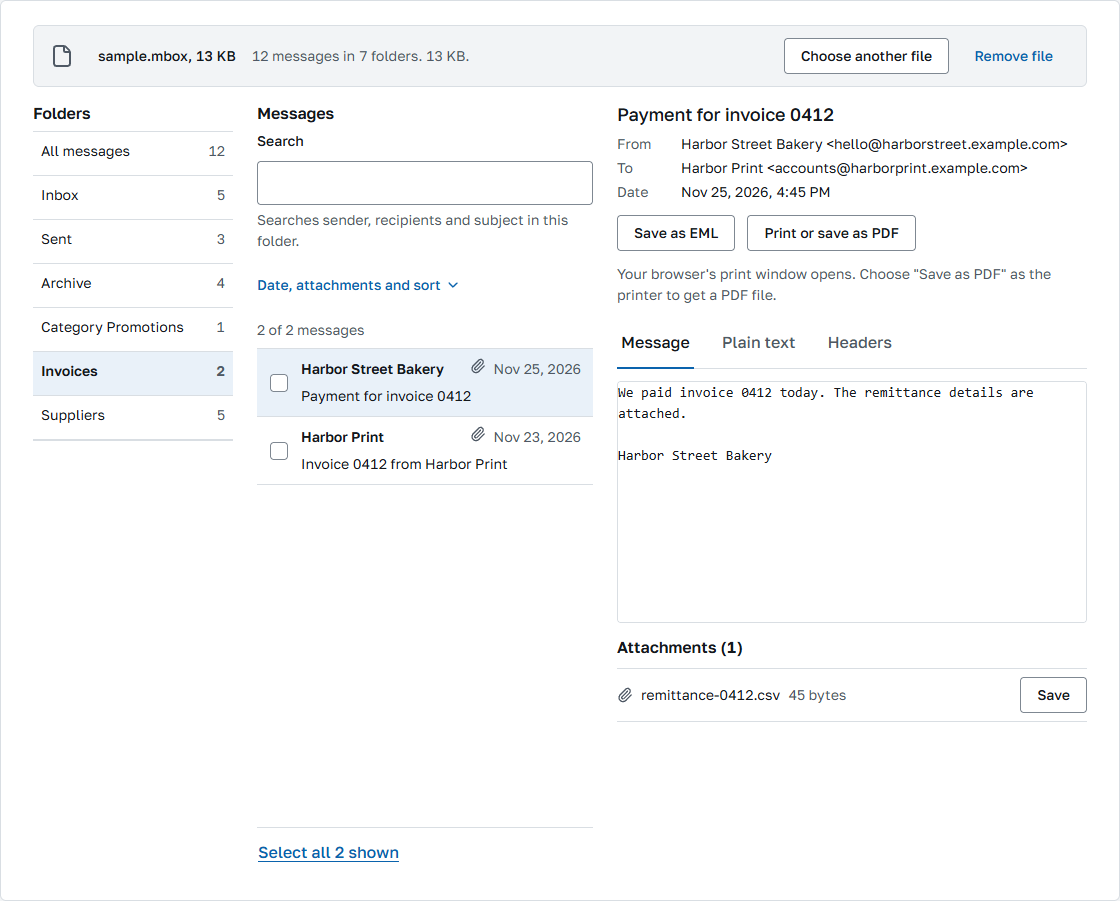
An MBOX file has no list of its messages, so the viewer has to read the whole file once to find where each message starts. The wait grows with the size of the file and the speed of the disk. We tested it with a made-up MBOX file of 5.0 GB and 4,705 messages, each with an attachment. The test computer ran Windows 11 with 47.7 GB of memory and a fast SSD. Chrome counted the messages in 9 to 34 seconds across repeated runs. We did not record which run was the first, so plan for the longer time. Firefox 160 took about three minutes. After the count, a message opens when you click it. The largest MBOX we tried was 5.0 GB. A bigger file may open, but we have not tried one, so a 20 GB or 50 GB file may take much longer. We have not tested a real Gmail download. Our test files copy the same header, so the results should carry over, but we cannot promise it.
In a mail program. Apple’s guide says Mail on a Mac imports MBOX files: choose File, then Import Mailboxes, then “Files in mbox format”, and select the folder that holds the files (Apple Mail guide). We did not test it. For Thunderbird we found no official steps, so we cannot say how it does it.
In a text editor. The file is text, so a text editor can open a small one. A large one will be slow, and you will see the messages as raw lines.
Check the result
The counts will not match Gmail one to one. Takeout includes Spam and Trash, which you may not look at in Gmail, and a message with two labels is counted under both in the viewer. So do spot checks instead. Open five messages from different years, including some with attachments, and save one attachment. Compare each with what you see in Gmail.
Keep in mind that Google says the archive may not include changes you made between your request and the moment the archive is created. If you delete or move mail the same day, check again afterwards.
Sources
All pages were read on November 29, 2026.
- Google Account Help, How to download your Google data
- Gmail Help, Export your data from Gmail
- University of Michigan IT, Getting started with Google Takeout
- Library of Congress, MBOX Email Format
- Apple Support, Import or export mailboxes in Mail on Mac
This site is not connected with Google or Apple. Gmail is a Google name and Apple Mail is an Apple name, used here to say which files and programs this page is about. The page is not advice for your particular account.