To export an Outlook.com mailbox to a PST file, you have to use a desktop version of Outlook. Microsoft’s page on exporting an Outlook.com mailbox says that new Outlook for Windows and classic Outlook for Windows can write a .pst file, and legacy Outlook for Mac can write a .olm file. The file holds a copy of your email, contacts and calendar up to the day you create it.
Microsoft warns about two settings that can cut an export short: how much mail Outlook has downloaded, and Cached Exchange Mode. They are explained before the steps.
What you need
Microsoft’s export page for Outlook.com (checked on November 29, 2026) gives three ways to get desktop Outlook:
- you already have it,
- you sign up for the free 30-day trial of Microsoft 365, or ask someone to sign up for you,
- you download classic Outlook for Windows and export in Reduced Functionality Mode, with no subscription and no trial. That is Microsoft’s term. Its page does not say what the mode limits, so check that before you rely on it.
Then you add your Outlook.com address to the Outlook app. Microsoft links its page on adding an email account for that.
First, how far back the export reaches
Microsoft’s page on exporting to a .pst file lists two things to do before an export in classic Outlook. First, Outlook is set by default to download email for the past 1 year. To export everything, go to Account settings, then Account Name and Sync Settings, and move the slider to All. Second, with Cached Exchange Mode on, Outlook exports only the items in its cache, which by default holds 12 months. Microsoft says to turn off Cached Exchange Mode first if you want to export more than the past 12 months.
Microsoft puts these under classic Outlook and does not say whether they also apply to new Outlook. If you use new Outlook, open some of your oldest mail in the app before you export, and check the result as described below.
Here is what the default means in dates. A file made on December 18, 2026 would reach back to about December 18, 2025, and a message from 2023 would be missing, even though it is in your mailbox online. Move the slider to All and let Outlook finish downloading the older mail before you export.
Steps in new Outlook for Windows
Microsoft lists three steps for new Outlook:
- Go to Settings, then Files, then Export.
- Choose Get started.
- Follow the wizard to pick the mailbox or the folders you want to export.
Microsoft adds that calendar and contact items saved in .pst files are not available in new Outlook at this time. Its page does not say whether that also affects the export. If you need your contacts and calendar in the file, use classic Outlook. That is our advice, drawn from Microsoft’s description of the classic export, which covers the Inbox, Calendar, Contacts and Tasks.
Steps in classic Outlook for Windows
- Choose File, then Open & Export, then Import/Export.
- Choose Export to a file, then Next.
- Choose Outlook Data File (.pst), then Next.
- Select the account to export. Only one account can be exported at a time. Keep “Include subfolders” checked, so that the Inbox, Calendar, Contacts and Tasks all go in.
- Choose Next, then Browse, and pick where to save the file and what to call it. Look at the folder path in the Browse box. If it contains OneDrive, choose another folder. Choose OK.
- Choose Finish.
- Outlook may offer to add a password. It is optional. If you will check the file in the viewer on this site, skip it, because we have not tested the viewer with password-protected PST files. If you do set one, keep it in a password manager and not next to the file.
Microsoft says not to save the file in a OneDrive folder, because OneDrive blocks automatic syncing of Outlook .pst files. Create the file on a local disk first, and copy it afterwards to a USB drive, another disk or cloud storage.
What the classic export leaves out
Microsoft says the export is a copy. Nothing leaves Outlook, and you still see your mail there. The file includes attachments. It does not include folder properties such as views, permissions and AutoArchive settings, it does not include your message rules, and it does not include your blocked senders list. If you rely on a rule, write down what it does before you close the account.
On a Mac
Microsoft’s page names the legacy Outlook for Mac as the way to export Outlook.com on a Mac, and it writes a .olm file, not a PST. The viewer on this site does not open OLM files. It opens PST, OST, MSG, EML and MBOX. If you are on a Mac, you have two ways forward. You can use a Windows PC with classic or new Outlook to make the PST. Or, if you need only some messages, you can save them one by one as EML or MSG files, as described at the end of this post.
We have not tested the viewer on a Mac, so we cannot say how it behaves there.
Check the file
An export you never opened is not a backup. Do this before you close or delete anything:
- Look at the size of the .pst file in File Explorer. A mailbox of years should not be a few hundred KB.
- Open it in the PST viewer. The file is read on your device and nothing is uploaded. It lists the folders with their message counts. Or add the file to Outlook and look there: in classic Outlook choose File, Open & Export, Open Outlook Data File. In new Outlook, Microsoft says you add it under Settings, Files, Outlook Data Files, and that it needs classic Outlook installed too.
- Compare the counts with Outlook. The folder list in Outlook normally shows the number of unread messages, not the total. In classic Outlook, select a folder and read the number of items in the status bar at the bottom of the window.
- Open the oldest messages in a few folders and save an attachment.
- Check the date of the oldest message against what you expect.
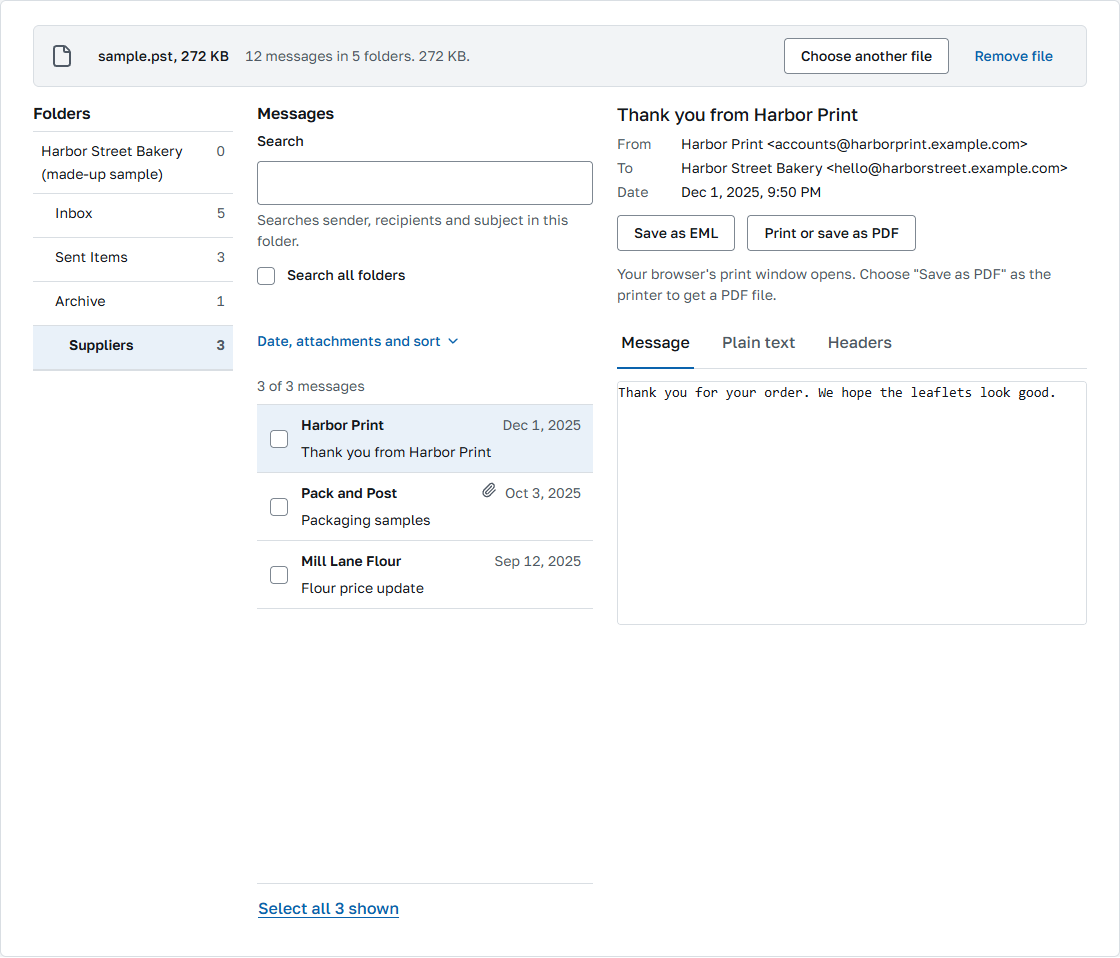
We tested the viewer with real Outlook PST and OST files from a public test set of another open-source project. We have not tested it on an export of an Outlook.com account, and not with a password-protected PST.
If you need only a few messages
For a handful of messages you do not need a PST. Microsoft says that in Outlook on the web and Outlook.com, you select a message, choose More actions, then Download, and you get an EML or an MSG file. The EML viewer and the MSG viewer open those, and the post on which format to keep says which to choose. If you are leaving a job, the checklist for saving your email puts this step in order with the others.
Sources
All pages were read on November 29, 2026.
- Microsoft Support, Export your Outlook.com mailbox
- Microsoft Support, Export emails, contacts, and calendar items to Outlook using a .pst file
- Microsoft Support, Save an Outlook message as a .eml file, a PDF file, or as a draft
- Microsoft Support, Open and close Outlook Data Files (.pst)
This site is not connected with Microsoft. Outlook is Microsoft’s product name, used here to say which files this page is about. Microsoft changes these screens from time to time, so a button may carry a different name when you read this. The page is not advice for your particular account.