Do these in order, and start before your last day. The first step decides whether you may copy anything at all. The next ones make sure the copy is complete, and the last ones make sure it opens. Steps 3, 4 and 5 can take hours or days with a large mailbox, so do not leave them for the last afternoon.
This list is written for Outlook and Gmail, because those are the accounts most people have to save. The same order works for any mail account.
Before you copy anything
1. Ask first. Mail from a work account may belong to your employer or a client, and it may hold other people’s personal data. Ask your manager or IT department what you may keep, and get the answer in writing while you still have access. Rules differ by country and by contract, and this post is not legal advice.
2. Find out what kind of account it is. Microsoft says that if you use email for work, you most likely have an Exchange or IMAP account, and that those servers keep an archive of your mail so that you can reach it from anywhere. For an Exchange account it tells you to ask your admin how to reach archived email (Back up your Outlook email, checked on November 29, 2026). That is a second reason to do step 1 first.
The kind of account also decides which file you have. Microsoft says a POP account keeps everything in a PST file, while Microsoft 365, Exchange, IMAP and Outlook.com accounts keep a copy in an OST file (Create an Outlook Data File). In classic Outlook, File, Account Settings, Account Settings shows both: the Email tab lists your accounts with their type, and the Data Files tab lists the .pst and .ost files. If you have a POP account, your mail already is a PST file. Close Outlook, find the file on the Data Files tab, and copy it. Then go on to step 9.
3. If you use Gmail or Google Drive for work, start a Google export early. Google says a Takeout export can take from a few minutes to a few days, and that the download link works for about 7 days. The steps are in the guide to downloading Gmail with Google Takeout. On a work or school account, Google says some data might not be available for download. If Takeout is refused or missing, your administrator may have turned it off, so ask them in step 1.
Make the copy
4. Tell Outlook to keep all the mail. By default, Outlook downloads the past year of mail. Microsoft’s classic Outlook steps say that to export everything you move the sync slider to All, under Account settings, then Account Name and Sync Settings. They also say that with Cached Exchange Mode on, an export contains only what is in the cache, which holds 12 months by default, and that you should turn Cached Exchange Mode off first to export more (Export emails, contacts, and calendar items). Let Outlook finish downloading before the next step.
5. Export to a PST file. In classic Outlook the route is File, Open & Export, Import/Export, Export to a file, Outlook Data File (.pst). Pick one account, keep “Include subfolders” checked, and do not save into a OneDrive folder, which Microsoft says blocks automatic syncing of PST files. If the work laptop goes back to your employer, do not leave the only copy on it. The full steps, including new Outlook, are in the guide to exporting a mailbox to a PST file.
6. Save a separate copy of your contacts. In classic Outlook, step 5 with “Include subfolders” checked already takes the Contacts folder and the Calendar with it. A separate copy is easier to reuse. Microsoft’s page on backing up your contacts shows how to export contacts to a PST, and its export page points to a separate export of contacts to a CSV file. For an Exchange account, Microsoft says contact information is kept on the server, so ask your admin as in step 2.
7. Write down what the export leaves out. Microsoft says the classic export does not include folder properties such as views, permissions and AutoArchive settings, your message rules, or your blocked senders list. If you depend on a rule, write down what it does.
8. Save single messages that matter in a second form. For a contract, an approval or a deadline, keep one message as its own file and, if you like, as a PDF. In Outlook on the web, select the message and choose More actions, then Download. You get an EML or an MSG file, and either keeps the whole message. For a PDF, print the message and choose a PDF printer, such as Microsoft Print to PDF, in the print window. The post on which format to keep explains the choice. Keep attachments as separate files too.
Check, then let go
9. Open the file and look. Open the PST in the PST viewer. It reads the file on your device, uploads nothing, and shows the folders with their message counts. Or add the file to Outlook and look there.
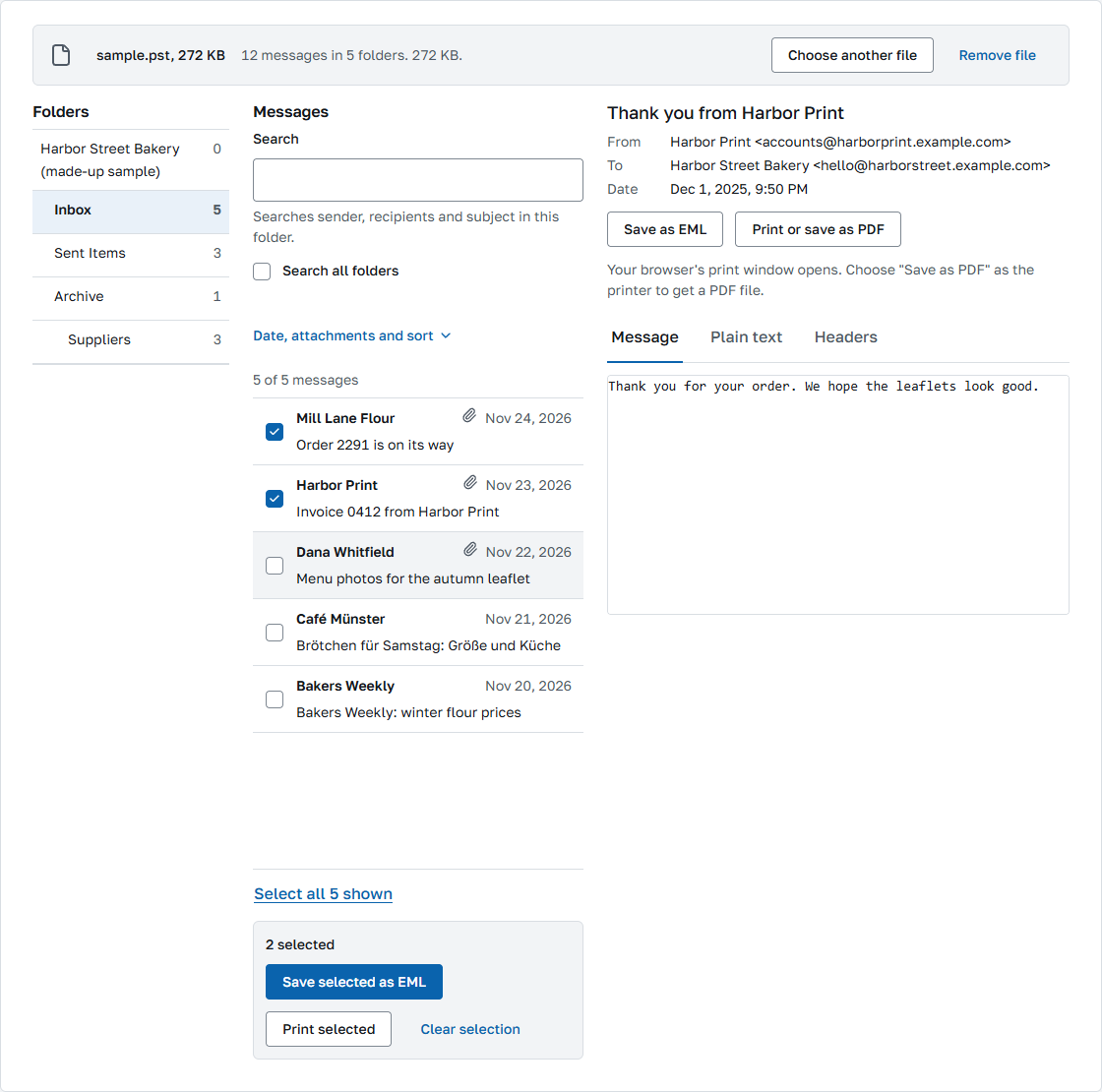
Compare the counts with Outlook. The folder list in Outlook normally shows the number of unread messages, not the total. In classic Outlook, select a folder and read the number of items in the status bar at the bottom of the window. Open the oldest message in a few folders. Save one attachment and open it. If you select messages in the viewer, “Save selected as EML” writes them into a ZIP file. The page allows up to 2,000 at a time, and we have only tried small groups. Its search covers sender, recipients, subject and date, not the text inside messages.
What we have tested: the viewer opens real Outlook PST and OST files from a public test set, and made-up files up to 5.2 GB. We have not tested it on an export from your own account, or with a password-protected PST.
10. Keep two copies in two places. Microsoft suggests copying the file to a USB drive, another disk or cloud storage. If your employer allows it, do that, and put the account name and the export date in the file name, for example work-mail-2026-12-18.pst. A file called backup.pst will mean nothing to you in three years. If your employer does not allow copies, return to step 1.
11. Close the account last. Do not delete the mailbox, hand back the laptop or let the account lapse until steps 9 and 10 are done. Once your access ends, a missing folder may be impossible to fix. Before you go, also look through the mail for what you will need later, such as payslips, contracts, references, and letters about benefits, and check which personal accounts, such as subscriptions, use your work address. Those are our suggestions, not from Microsoft or Google.
The short version
- Ask what you may keep.
- Find out if it is PST or OST, Exchange or POP.
- Start any Google export early.
- Set Outlook to keep all mail, and let it download.
- Export to PST.
- Save a separate copy of your contacts.
- Write down rules and settings the export leaves out.
- Save key messages as EML or MSG, and PDF if you like.
- Open the file and compare it with Outlook.
- Keep two copies with clear names, if your employer allows it.
- Close the account last.
Sources
All pages were read on November 29, 2026.
- Microsoft Support, Back up your Outlook email
- Microsoft Support, Export emails, contacts, and calendar items to Outlook using a .pst file
- Microsoft Support, Create an Outlook Data File (.pst) to save your information
- Microsoft Support, Back up your contacts
- Microsoft Support, Save an Outlook message as a .eml file, a PDF file, or as a draft
- Google Account Help, How to download your Google data
- Gmail Help, Export your data from Gmail
This site is not connected with Microsoft or Google. Outlook and Gmail are their names, used here to say which files this page is about. This page is not legal advice, and it cannot tell you what your employer allows.